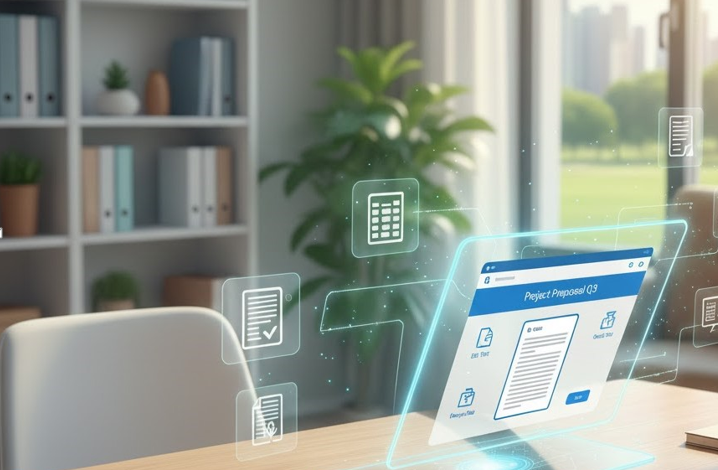
An online PDF editor makes working with documents simple and fast. When you need to change text, rearrange pages, add a signature, or remove sensitive information, a good online tool saves time and keeps the original layout intact. This guide explains how an online PDF editor works, the features that matter, and clear steps to get the best results every time.
Why use an online PDF editor
Online PDF editors let you edit files from any device with a browser. You do not need to install software. You can open a PDF on a phone, a tablet, or a desktop and make changes in minutes. These tools handle common tasks that used to require printing, signing, and scanning. They speed up workflows and reduce paper use. They work well for small business owners, students, teachers, and anyone who handles documents every day.
Core editing features
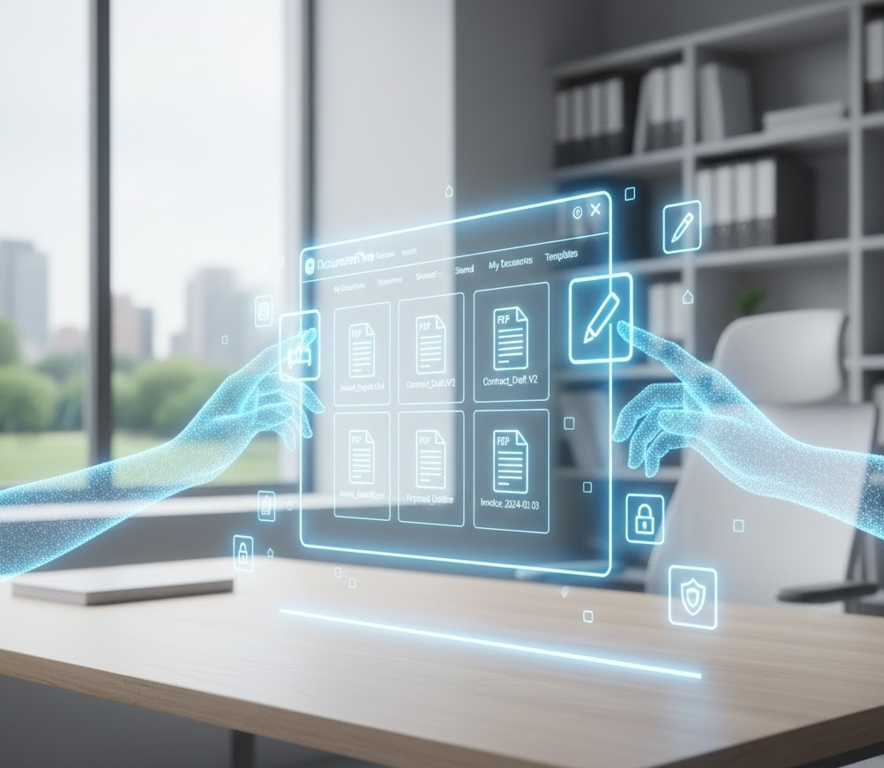
A strong online PDF editor offers a full set of tools. You can edit existing text and change fonts and sizes. You can add new text boxes and move them to the right place. You can insert images and logos. You can annotate documents with comments and highlights. You can add or remove pages. You can merge several files into one and split a single PDF into multiple files. You can also add page numbers and headers. For forms, you can create fillable fields that users complete on screen. These features transform static files into interactive documents.
Working with scanned documents
If you work with scanned pages then optical character recognition is essential. OCR turns images of text into searchable and editable content. After OCR you can select text, copy it, and search the document. A good OCR engine recognizes multiple languages and preserves the original layout. For older scans you can use image enhancement tools to remove noise and correct contrast. This makes the text clearer and improves accuracy.
Security and privacy
Security matters when documents contain personal or confidential information. Choose an editor that uses secure connections and that deletes files after processing. Look for the option to set a password so only the right person can open the file. Some services encrypt files and keep them private on the server. If you prefer not to upload files to a remote server use an editor that runs fully in your browser so files stay on your device. These safeguards protect sensitive data.
How to edit a PDF in five steps
First open the online editor in your browser. Second, upload the file from your computer or import it from cloud storage. Third, choose the tool you need such as text edit, image insert, or page reorder. Fourth apply changes and review the document page by page. Fifth save and download the final PDF or save it back to cloud storage. This process takes a few minutes for most documents and saves time compared with printing and rescanning.
Useful features for business
For business users look for tools that streamline approvals and contracts. Electronic signatures let people sign documents from anywhere. Audit trails show who opened and signed a document and when they did it. Bulk processing saves time when you need to apply the same change to many files. Integration with cloud apps means documents move easily between storage and editing tools. These features keep business workflows efficient and secure.
Tips for precise edits
Work with the original PDF when possible. If the document came from a Word or PowerPoint file ask the sender for the source file for easier edits. Use zoom and grid tools for precise placement of images and text boxes. If text looks different after editing check font embedding. Some fonts are not available on all devices. Embedding fonts preserves the original appearance. When adding a signature use a transparent PNG to avoid white boxes over text.
See also: Real-time AI Content Detection: Protect Your Online Presence
Mobile editing and scanning
A mobile friendly editor makes it easy to scan receipts and sign contracts while on the go. Use your phone camera to capture a page and then use the crop and enhance tools to produce a clean page. Mobile signing features let you add a signature with a finger or a stylus. These tools keep work moving when you are away from the office.
Accessibility and collaboration
Accessibility features such as readable text and clear contrast help people with visual needs. Collaboration tools let multiple people add comments or make changes and then resolve feedback. Version history shows past edits so you can revert to an earlier version if needed. These features support teams working together on reports or proposals.
Choosing the right editor
Decide what matters most. If you often edit scanned documents choose a service with strong OCR. If privacy is essential choose an editor that offers local processing or strict deletion policies. If you need advanced workflows choose tools with signature tracking and integration with other business apps. Test a free version first to confirm speed and quality before committing to a paid plan.
Cost and plans
Many editors offer a free tier for basic editing with limits on file size or daily usage. Paid plans remove limits and add features like batch processing, advanced OCR, and priority support. For heavy users or teams a paid plan often provides better value through time saved and improved reliability.
SEO friendly documents
Making documents searchable helps find content quickly. Run OCR on scanned files so text becomes searchable. Use clear and descriptive file names and add metadata when the editor supports it. Searchable documents improve productivity and are easier to archive.
Common problems and fixes
If text alignment changes try editing in the original application or embed fonts before exporting to PDF. If images look low quality, increase image resolution or avoid compressing important pages. If OCR misses words try improving lighting when scanning or selecting a different OCR language. If form fields do not work, confirm the file uses standard PDF form types.
Real life examples
A freelance designer sends a proposal with embedded fonts and signs the agreement online. A teacher combines student assignments into a single file and adds page numbers for grading. A small company scans receipts and converts them into searchable files for accounting. A lawyer redacts sensitive names before sharing a document. These examples show practical benefits of an online editor.
Final thoughts
An online PDF editor transforms how you work with documents. It saves time, reduces paper, and keeps files professional. Choose a tool that matches your needs for editing, security, and collaboration. If you need file conversion as well try a pdf converter that handles both editing and conversion tasks. For tools that help with many everyday tasks visit this tool based website to explore more options.